
1. Make sure their phone works with Popl: Compatible Devices
The phone model you have does not matter when sharing!
2. Make sure to touch your Popl to the very top of the back of their phone.
On iPhones, the sweet spot for reading a Popl is on the very top of the back of the device. See video below.
3. A Popl CANNOT be read when:
- their phone is in airplane mode
- their device flashlight is on
- their phone screen is off
- their camera is open
4. Watch the video below to see the best technique for popping to compatible iPhones!
2. Make sure to touch your Popl to the very center of the back of their phone.
For Androids, the sweet spot for reading a Popl is in the center of the back of the device.
To pop to an iPhone 7, iPhone 8or iPhone X, you must use the NFC reader in their control center! See the image below for how to activate this: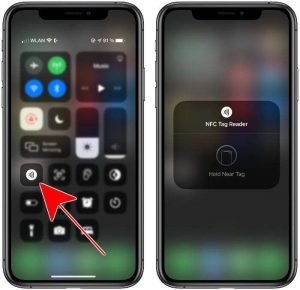
1. Make sure their phone works with Popl: Compatible Devices
The phone model you have does not matter when sharing!
2. Make sure to touch your Popl to the very top of the back of their phone.
On iPhones, the sweet spot for reading a Popl is on the very top of the back of the device. See video below.
3. A Popl CANNOT be read when:
- their phone is in airplane mode
- their device flashlight is on
- their phone screen is off
- their camera is open
4. Watch the video below to see the best technique for popping to compatible iPhones!
2. Make sure to touch your Popl to the very center of the back of their phone.
For Androids, the sweet spot for reading a Popl is in the center of the back of the device.
To pop to an iPhone 7, iPhone 8or iPhone X, you must use the NFC reader in their control center! See the image below for how to activate this:
1. Make sure their phone works with Popl: Compatible Devices
The phone model you have does not matter when sharing!
2. Make sure to touch your Popl to the very top of the back of their phone.
On iPhones, the sweet spot for reading a Popl is on the very top of the back of the device. See video below.
3. A Popl CANNOT be read when:
- their phone is in airplane mode
- their device flashlight is on
- their phone screen is off
- their camera is open
4. Watch the video below to see the best technique for popping to compatible iPhones!
2. Make sure to touch your Popl to the very center of the back of their phone.
For Androids, the sweet spot for reading a Popl is in the center of the back of the device.
To pop to an iPhone 7, iPhone 8or iPhone X, you must use the NFC reader in their control center! See the image below for how to activate this:
Lorem ipsum dolor sit amet, consectetur adipisicing elit. Optio, neque qui velit. Magni dolorum quidem ipsam eligendi, totam, facilis laudantium cum accusamus ullam voluptatibus commodi numquam, error, est. Ea, consequatur.
Lorem ipsum dolor sit amet, consectetur adipisicing elit. Optio, neque qui velit. Magni dolorum quidem ipsam eligendi, totam, facilis laudantium cum accusamus ullam voluptatibus commodi numquam, error, est. Ea, consequatur.